
The editor is where you add and arrange the content on your pages. Here is where to find its main tools.
The Editor Layout
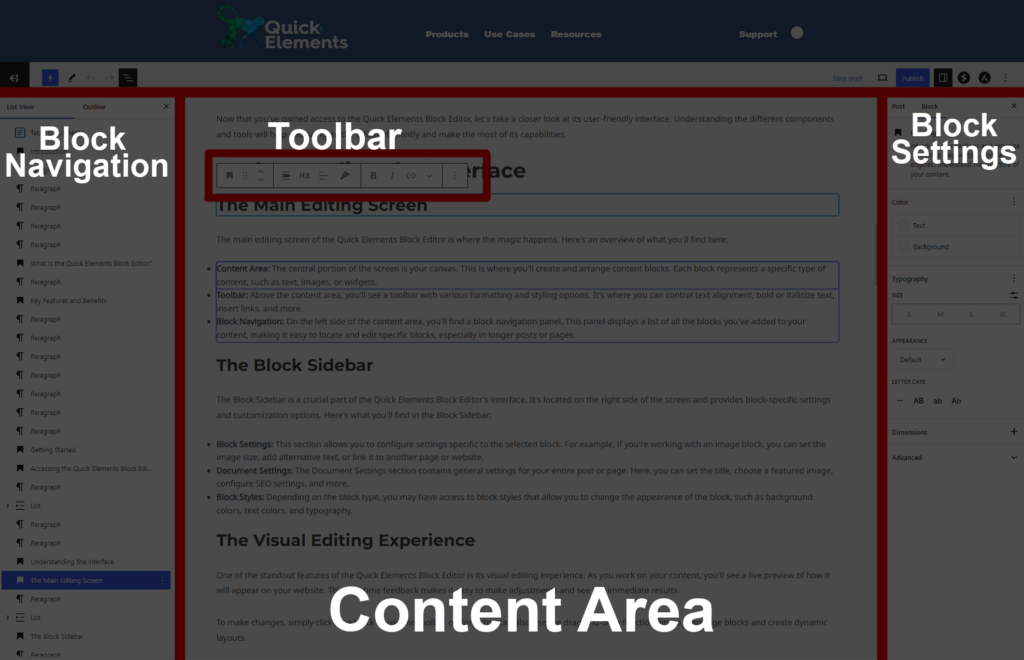
When you first open the editor, you’ll see an interface divided into four main sections:
- Top Toolbar: Contains general document settings and publishing options.
- Main Content Area: The central workspace where you’ll create and edit your content.
- Left Sidebar: A list view of all the blocks on the page, or an outline of the content.
- Right Sidebar: Provides additional settings and options for your document and individual blocks.
The Top Toolbar
The top toolbar offers several important functions:
- Document Actions: Save drafts, preview your work, and publish your content.
- Undo/Redo Buttons: On the left side, quickly reverse or reapply recent changes.
- Block Inserter: A “+” icon that opens the block library.
- Tools Menu: Access to additional editing tools and options.
- SEO Checklist: A checklist to make sure you have completed the recommended actions to rank on search engines.
The Main Content Area
This is where the magic happens! The content area uses a block-based system, allowing you to create sophisticated layouts with ease. Here’s how it works:
- Adding Blocks: Click the “+” icon to open the block inserter. Choose from various block types: paragraphs, headings, images, and more.
- Editing Blocks: Click on any block to edit its content directly.
- Block Toolbar: When a block is selected, a toolbar appears above it with formatting options specific to that block type.
- On the right hand sidebar, if you have selected the settings icon at the top right, you will see block specific settings.
- Moving Blocks: Use the drag handles or arrow icons to reposition blocks within your content.
The Sidebar
The sidebar provides two main tabs:
Document Settings (Page or Post): Control document-wide options like:
- Categories and tags
- Featured image
- Excerpt (Page or post description)
- Discussion settings (Turn comments on or off)
Block Settings: When a block is selected, this tab displays additional options and settings for that specific block type.
Key Features
- Reusable Blocks: Save frequently used block configurations for quick reuse.
- Block Patterns: Pre-designed block layouts for common content structures.
- Responsive Design Tools: Preview and adjust how your content looks on different device sizes.