
You can change your site’s colors, fonts, and layouts in the editor. Start with the settings that appear across the whole site, then adjust individual pages.
Adjusting Colors
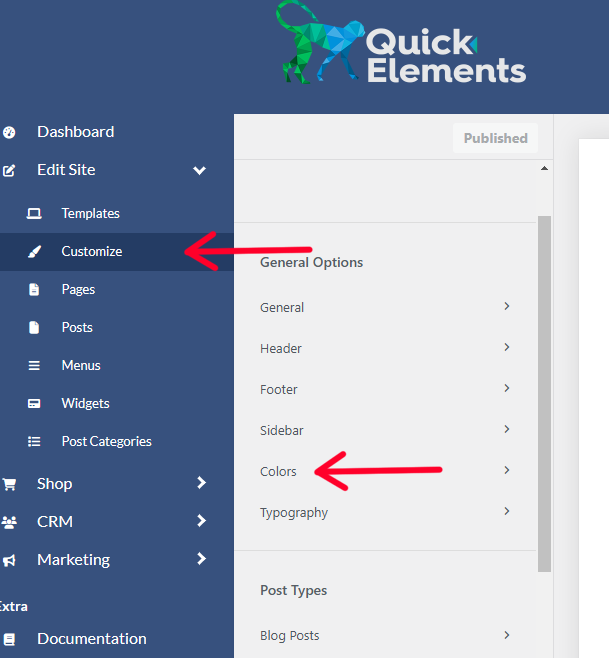
1. Access the Customizer
- Log into your Quick Elements dashboard
- On the left sidebar, click on “Customize”
- Click on “Colors” or “Color Scheme”
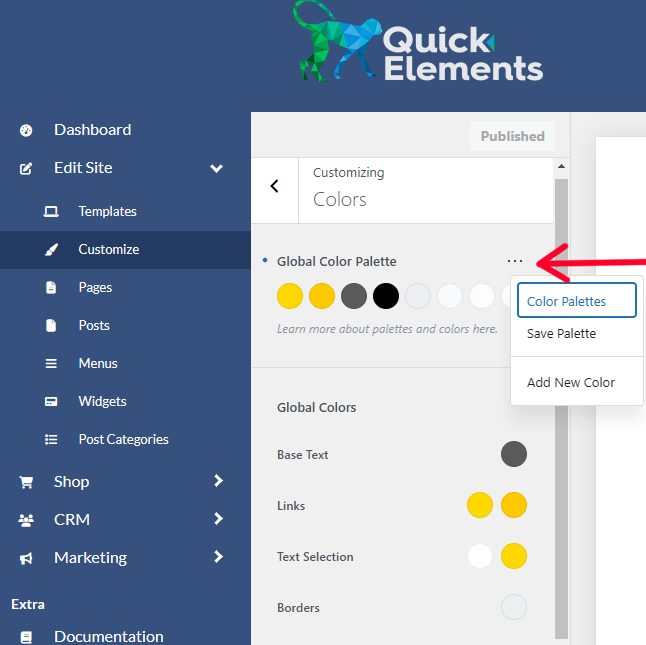
2. Choose Your Color Scheme
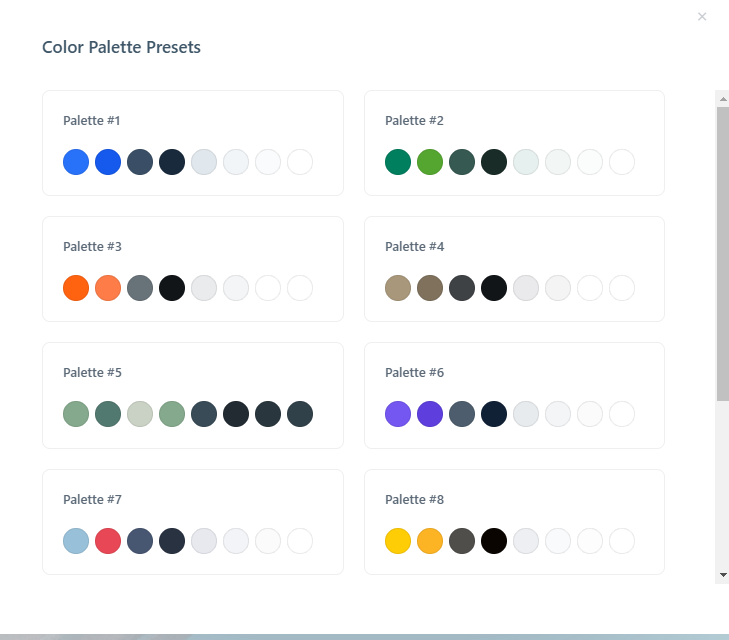
- Select a pre-defined color scheme or create a custom one
- Use the color picker to choose specific colors for:
- Background
- Text
- Links
- Buttons
- Header and footer
Customizing Fonts
1. Access Font Settings
- In the Customizer, click on “Typography”
2. Choose Your Fonts
- Select from pre-installed fonts or add custom fonts
- Set different fonts for:
- Headings
- Body text
- Navigation
- Buttons