
Before you start selling, check your store’s currency, tax, and other checkout settings.
Why Proper Store Configuration Matters
- Legal Compliance: Correct tax settings ensure you’re complying with local and international laws.
- Customer Experience: Proper currency settings help customers understand pricing easily.
- Financial Accuracy: Correct configuration ensures your revenue calculations are accurate.
- Global Reach: The right settings can help you sell to customers worldwide.
Accessing Store Settings
- Log into your Quick Elements dashboard
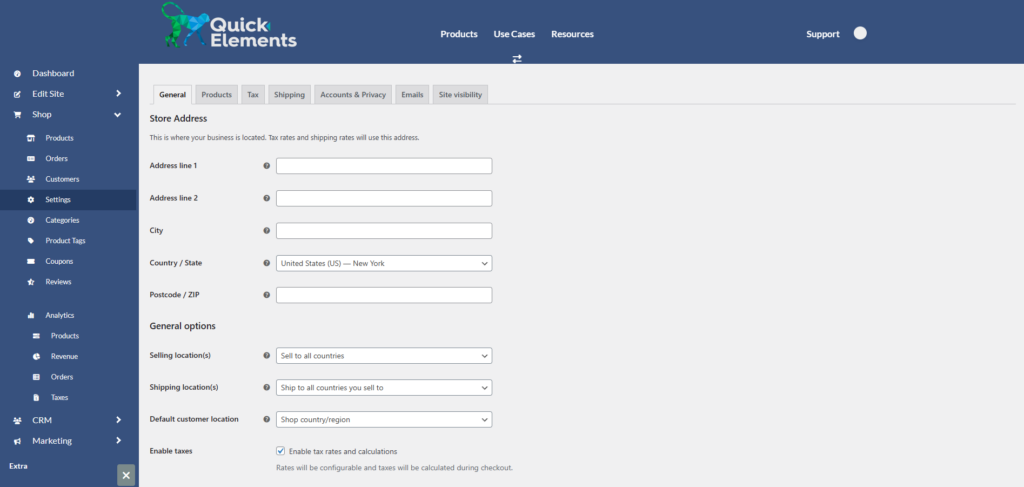
- Navigate to “Settings” under the “Shop” section in the left sidebar
Configuring Currency Settings
1. Set Your Currency
- Choose your currency (the primary currency for your store)
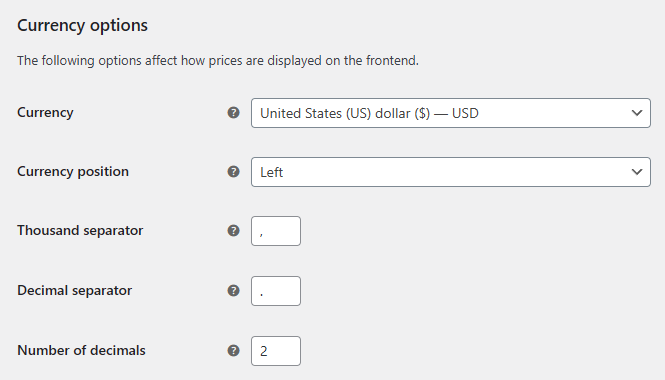
2. Set Currency Display Options
- Choose how prices will be displayed (e.g., $10.00, 10.00 USD)
- Set the number of decimal places to show
Setting Up Tax Configuration
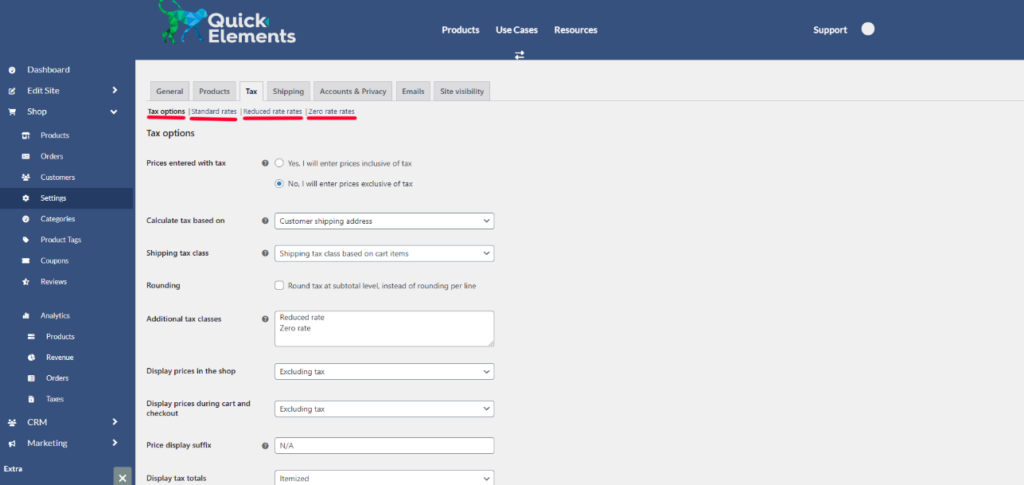
1. Enable Tax Calculations
- Click on the “Tax” section
- Enable tax calculations if required for your business
2. Set Your Store’s Location
- Enter your business address
- This helps in determining which tax rules apply to your store
3. Configure Tax Rates
- Add tax rates for different regions you sell to
- You may need to set up:
- State/Provincial taxes
- Country-specific VAT rates
- Special tax zones
4. Set Up Tax Classes
- Create tax classes for different types of products (if applicable)
- Assign tax rates to these classes
5. Configure Tax Display Settings
- Choose whether to display prices inclusive or exclusive of tax
- Decide how tax will be shown during checkout
Make sure to take a look at your standard rates & update them if needed.
Additional Important Store Settings
1. Shipping Zones and Methods
- Set up shipping zones based on where you’ll ship to
- Configure shipping methods and rates for each zone
2. Customer Accounts
- Decide whether to allow guest checkouts
- Configure customer account features
3. Manage Emails
- Mange emails sent by your website