
Track stock from your store dashboard, set low-stock alerts, and update quantities when products arrive or sell.
Enabling Inventory Management:
- Log in to your Quick Elements dashboard.
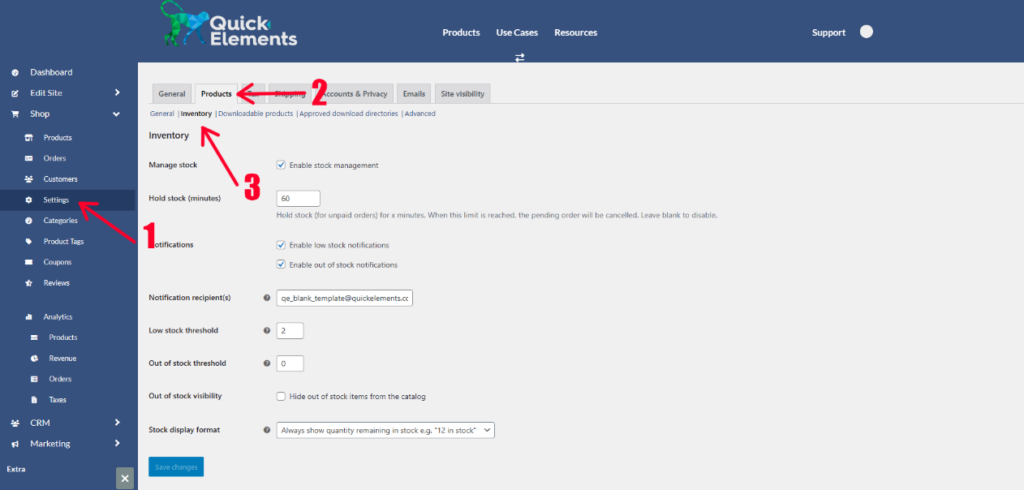
- Go to Settings > Products > Inventory.
- Check the box next to “Enable stock management”.
- Save your changes.
Setting Up Individual Product Inventory:
- Navigate to “Products” under the “Shop” submenu.
- Select a product to edit or add a new one.
- In the product data section, click on “Inventory” and then check the “Track stock?” box.
- Enter the stock quantity for the product.
- (Optional) Set a low stock threshold for this product if different than store wide option.
Managing Variable Product Inventory:
- For products with variations (like different sizes or colors), go to the Variations tab.
- You can manage stock for each variation independently.
- Enter stock quantities for each variation as needed.
Bulk Editing Inventory:
- From the Products page, you can select multiple items.
- Use the bulk edit feature to update stock quantities for several products at once.
Setting Up Low Stock Alerts:
- Go to Settings (Under “Shop” on the sidebar) > Products > Inventory.
- Enter an email address for low stock notifications.
- Set the threshold for low stock alerts.
Handling Out of Stock Items:
- Decide whether to allow backorders for out-of-stock items.
- You can set this globally or per product.
- Choose to hide out-of-stock items from your store or display them as “Out of Stock”.
Automated Stock Updates:
- Quick Elements automatically adjusts stock levels when orders are placed.
- You can also manually adjust stock levels as needed, such as when receiving new inventory.
Remember, accurate inventory management is key to avoiding overselling and ensuring customer satisfaction. Regularly review your inventory levels and use the automated features of Quick Elements to stay on top of your stock management.