
If a product comes in different sizes, colors, or other options, set up attributes and use them to create variations.
Create Attributes:
- Click on “Products” in your Quick Elements dashboard.
- Scroll down and click “Add New Attribute” and name it (e.g., “Size” or “Color”).
- Configure settings as needed.
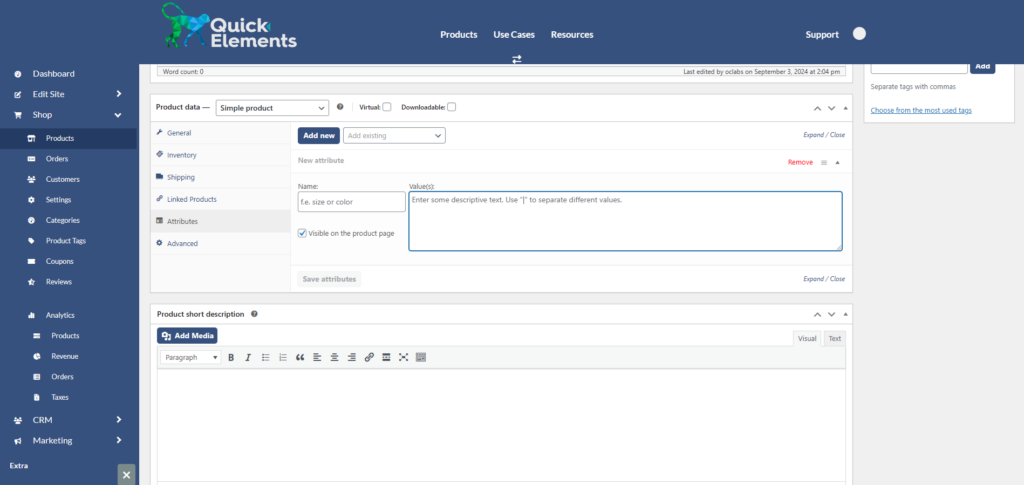
Create Variations:
- Change the product from “Simple product” to “Variable product”
- Go to the “Variations” tab.
- Add some attributes in the Attributes tab to generate variations. Make sure to check the Used for variations box.
Set Variation Details:
- For each variation, set the price, SKU, and manage stock if needed.
- You can also upload unique images for each variation.