
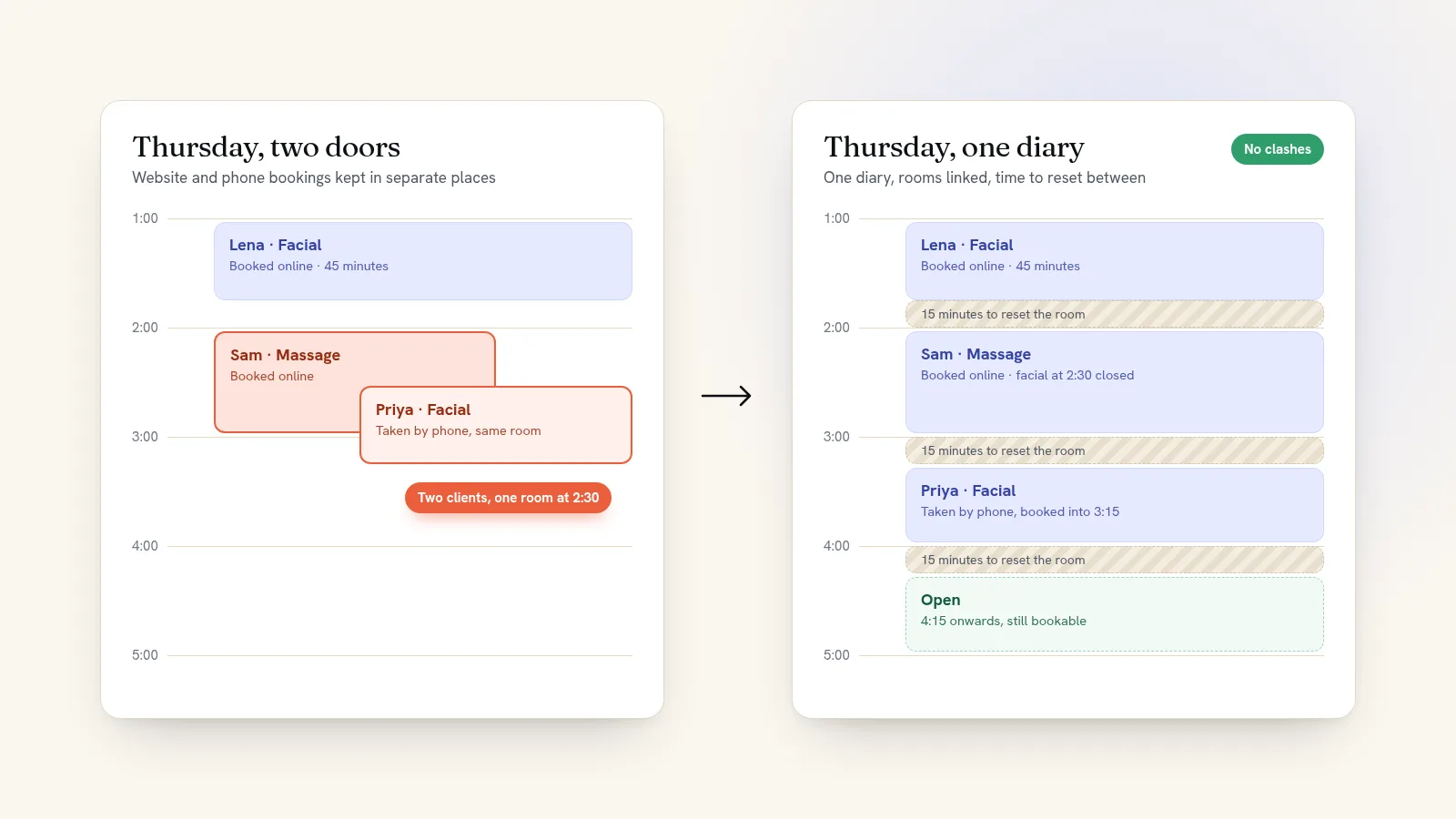
Double bookings happen when bookings come in through more than one door (your website, the phone, messages, a paper diary) and nothing checks them against each other. To prevent them, put every booking into one calendar, let that calendar close a time the moment it's full, and set rules for anything that shares a room, a person or a piece of equipment, with buffer time in between.
Below are the usual causes, and the fix for each.
Why double bookings happen
- Bookings arrive in several places and get copied into the diary by hand, sometimes hours later.
- Two services use the same room or the same person, but the booking system treats them as unrelated.
- There's no gap between appointments for cleaning, setting up or travelling.
- Two people try to book the last place at the same moment.
- The schedule changes, and bookings on the old times get lost or quietly shifted.
- Someone on the team takes a booking without seeing the diary.
1. Keep one calendar for everything
Choose one place where every booking lives, and make it your website's booking system, because that's the one customers use while you're asleep. Phone, walk-in and message bookings go in there too, straight away, not at the end of the day.
On Quick Elements, a booking taken by phone or at the counter is entered from the sales screen with the customer's details and how they paid. It counts against availability exactly like an online booking, so your website never sells a time you've already given away.
2. Let availability close itself
Set how many people each time can hold, and let the system close it when it's full: one for a haircut, eight for a workshop, one group for an escape room. Quick Elements also checks availability one last time as each order completes, so two people paying for the last place at the same moment can't both get it.
3. Link things that share a room or a person
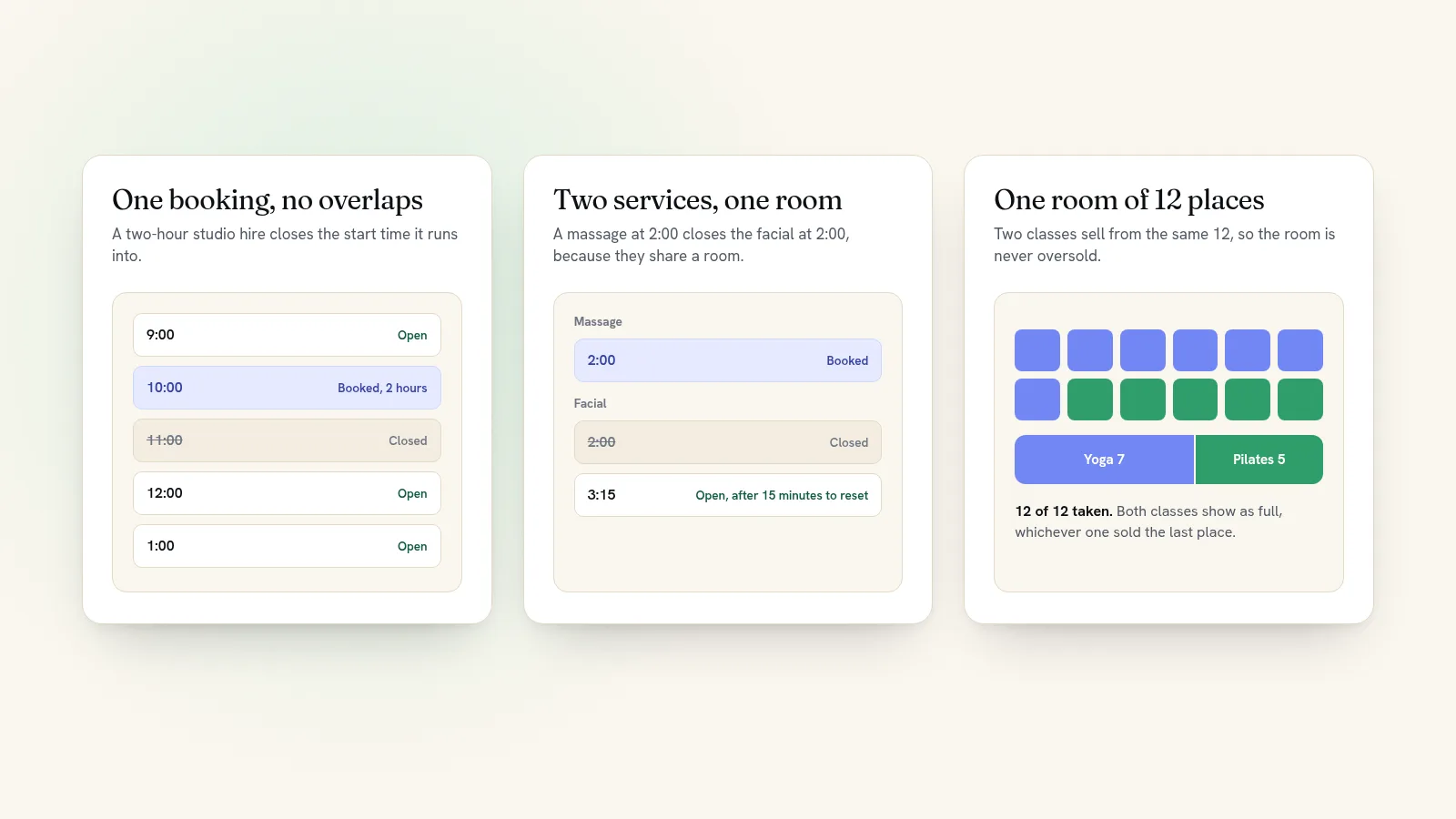
This is where most double bookings come from. You offer massage and facials, and there's one treatment room, so booking one should block the other. Quick Elements gives you three ways to say so:
- A booking can block the other times of the same service, for appointments and rentals that mustn't overlap themselves.
- A booking can block specific other services, for two services that share a room or a person.
- Several services can sell from one shared number of places. A studio that holds 12 can run Morning Yoga and Lunchtime Pilates from the same 12, so the room can never be oversold, whichever class fills first.
4. Add buffer time
Back-to-back bookings with no gap turn into overlaps the first time something runs late. Add buffer minutes before and after a booking for cleaning, setting up, or driving to the next job. On Quick Elements buffers are set for each booking option, and the blocked time frees up again if the booking is cancelled or moved.
5. Close the days you're away
Add holidays, training days and maintenance days as days off before you go, and the schedule repeats around them. Nobody can book a day that never appears.
6. Change times without losing bookings
When you change your schedule, bookings on the old times shouldn't disappear or move without anyone noticing. On Quick Elements, dates that already have bookings are kept when you change a schedule, so you can rearrange next month without touching anyone who has already paid.
7. Move bookings instead of rebooking
When a client asks to switch, move their existing booking rather than cancelling it and booking again. Moving frees the old time and takes the new one in a single step, with no moment where both are held or neither is. On Quick Elements you do this from the list of who's booked, and the booking can only move to a time that's still free.
If more than one person takes bookings
With two stylists or two instructors, double bookings usually happen when one person's diary lives in someone else's head. Give each person who can be booked their own service on your site, such as "Cut with Ana" and "Cut with Leo", so each has their own times. Where they share something, like the one colour chair or the studio floor, link those services so booking one closes the other, or sell both from one shared number of places.
The same goes for the people answering the phone. Everyone who takes bookings should take them in the one place. Quick Elements lets you give the people who answer the phone access to the booking tools, and decide which parts of them each person can use, such as managing bookings but not changing your settings.
When a double booking happens anyway
Deal with it as early as you can, ideally the day you spot it, not when both clients are standing at the desk.
- Work out which booking came first, and keep that one.
- Call or email the other client, say plainly that it was your mistake, and offer two or three specific new times.
- Give them something for the trouble: a discount, an add-on, or first pick of times next month.
- Move their booking to the time they choose, rather than cancelling and starting again.
- Find the door it came through, and close it.
Avoid overbooking on purpose. Airlines can sell more seats than they have because a few people never turn up, but a small business that does it ends up turning away a regular. Take payment at booking and fill gaps from a list of people who want last-minute openings instead.
What about Google Calendar?
Quick Elements doesn't read your personal Google or Apple calendar, so a dentist appointment you put there won't close a slot on your site. There are two ways around it: add the whole day as a day off, or hold the time with a booking in your own name at no charge, which takes that slot off sale. Your customers, for their part, can add their booking to Apple Calendar, Google Calendar or Outlook straight from your site.
Test it before your customers do
- Book the last place on your phone, then try to book the same place on your laptop.
- Book a service that shares a room, then check the other service's time has closed.
- Enter a phone booking and check your website no longer offers that time.
- Cancel a test booking and check the time comes back.
If you're still choosing how to take bookings at all, start with our guide to adding online booking to your website.
Stop double bookings with Quick Elements
Every Quick Elements website takes bookings with these rules built in: a final availability check at payment, shared places, linked services, buffer minutes, days off, and phone bookings that count like online ones. You set them once, and your diary stays right while you work. Read the full booking guide, see how businesses that hire out space use it on the studio rental page, or choose a plan.