
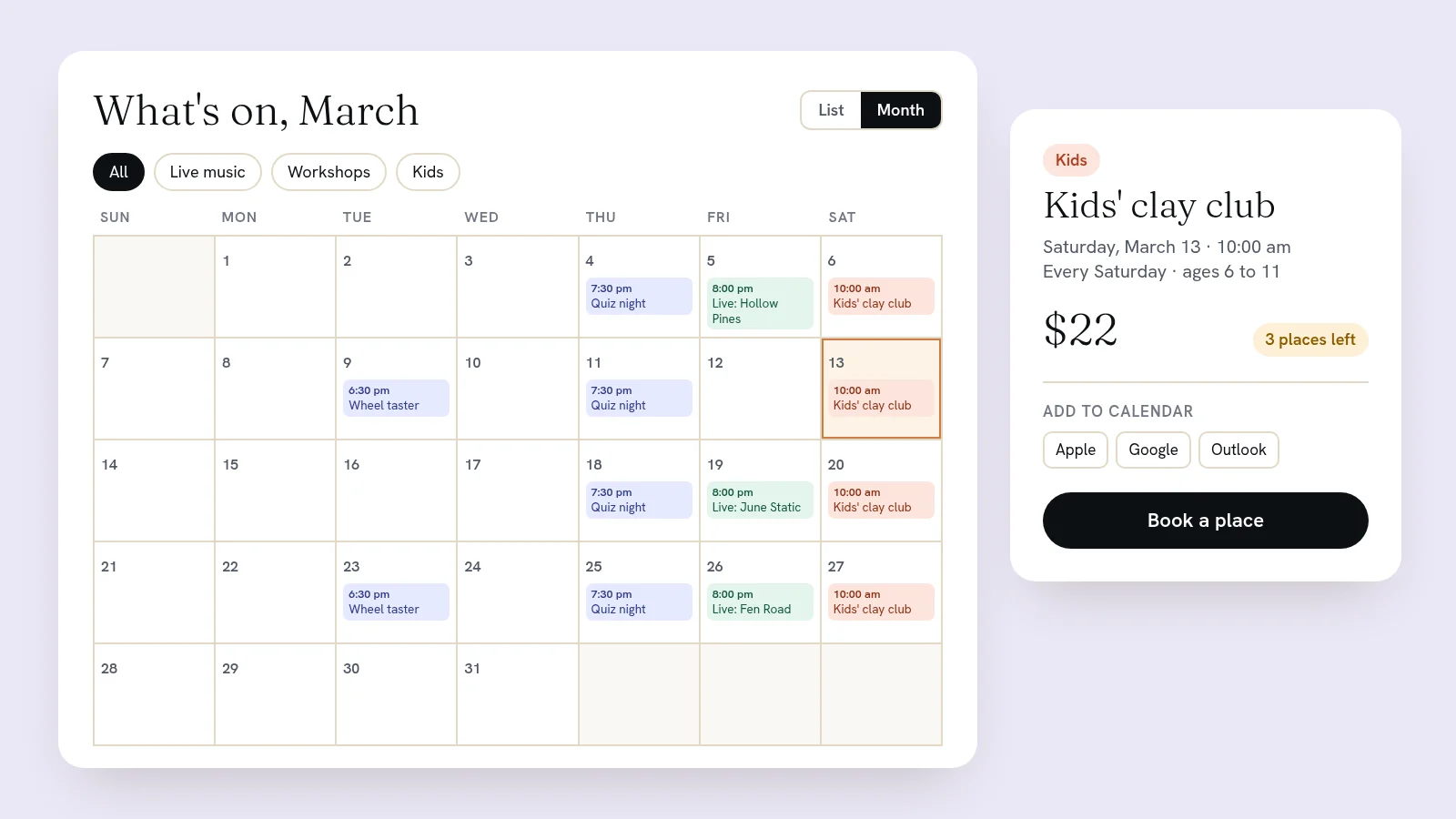
There are three ways to add an events calendar to your website: embed a shared calendar such as Google Calendar, add a calendar from a widget service or your website builder's own calendar page, or use a website with events built in. Embedding is free and takes ten minutes, but it only shows dates. If people need to book, buy tickets or sign up, choose a website where the calendar and the bookings are the same thing, so every event has its own page and nothing has to be typed twice.
Option 1: embed a shared calendar
Google Calendar can be shown on any website. On a computer, open its settings, choose your calendar, go to "Integrate calendar", set how it should look and copy the code it gives you into your page. The calendar has to be public for visitors to see it (Google's help page, checked November 2026).
It suits a club, a church or a team that wants its schedule online today, for nothing, and edits it from a phone. The catches:
- It looks like Google's calendar sitting inside your site, not like your site.
- Making it public makes everything on it public. Create a separate calendar just for the website, so nobody reads your dentist appointment.
- There's no page for each event to share or for search engines to find, only a pop-up inside the calendar.
- Nobody can book, pay or sign up. You'll need a separate form or ticket site, and its dates have to be kept in step by hand.
Option 2: a calendar add-on
Widget services sell a calendar you paste into any website, with more design choices than Google's. Elfsight's event calendar, for example, is free up to 200 views a month with its branding shown, and its pricing page says the calendar is temporarily switched off if you go over that limit; paid plans raise it (checked November 2026). For a busy site, that limit matters more than the price.
Most website builders also have a calendar of their own. Squarespace's calendar pages show events as a list or a month view, but they can't repeat an event (you duplicate it by hand), and they don't take bookings. For bookings, Squarespace recommends adding Acuity Scheduling (Squarespace help, checked November 2026). Wix's events feature does sell tickets, and adds a 2.5% ticket service fee on top of card processing (Wix help, checked November 2026).
An add-on suits a site that already exists and only needs to list what's on. The catch is one more account and one more bill, and the same split as option 1 the moment you need bookings: the calendar in one place, tickets in another.
Option 3: a website with events built in
Here the calendar isn't a separate thing at all. You create an event once, with its dates, times, prices and number of places, and the website builds the list, the month view, the event's own page and the booking form from it. Change the date and it changes everywhere. Sell the last place and every view shows it's full.
This suits anyone who sells tickets, takes class bookings or collects sign-ups: venues, studios, tour operators, clubs and churches. The catch is that your website has to come from a builder that does this, so it's a bigger change than pasting in a widget. If your current site works and you only list a few dates a year, options 1 or 2 are fine.
What a good events calendar needs
Whichever way you go, check it against what visitors actually do with it:
- Upcoming events first, and past ones out of the way.
- Date, time, place and price visible without clicking.
- A list view as well as a month grid. On a phone, a list is far easier to read.
- A way to narrow it down: kids, live music, workshops.
- A page for each event that you can share in a post or an email.
- "Add to my calendar", so people don't forget.
- A way to book or sign up, right there.
How it works on a Quick Elements site
Every Quick Elements website has events built in, which is option 3. When you add your first event, you get:
- An events page at your-domain.com/events with a list of everything coming up and a monthly calendar, in your site's design.
- Categories such as Live music, Workshops or Kids, so the list can be filtered.
- A page for each event on your own web address, where visitors pick a date and book.
- Add to calendar on every date, for Apple Calendar, Google Calendar and Outlook.
- Repeating schedules: daily, weekly, monthly or chosen dates, with several times a day and days off for holidays. A schedule with no end date keeps itself stocked a year ahead.
- Tickets or free places, each with its own price and number per date. The page says when few are left and stops at full.
You can also put the next few events on any page, such as "This week" on your home page, and they update themselves. The music venue design does exactly that with its line-up.
One honest gap: Quick Elements event pages don't add the special event data Google reads for its own event listings. Our guide to getting your events on Google covers what to do instead.
Keep it up to date
A calendar with last month's events on it tells visitors the business might be closed. Three habits help:
- Add events the day you confirm them, not the week before.
- Use repeating schedules for anything regular, so the weekly quiz is never missing.
- Add holidays as days off as soon as you know them.
Pick the one that fits
If you only need dates on a page, embed a Google Calendar this afternoon. If people need to book, put your events where the bookings are. See how events on a Quick Elements site work, or compare it with Squarespace if that's what you use now.