
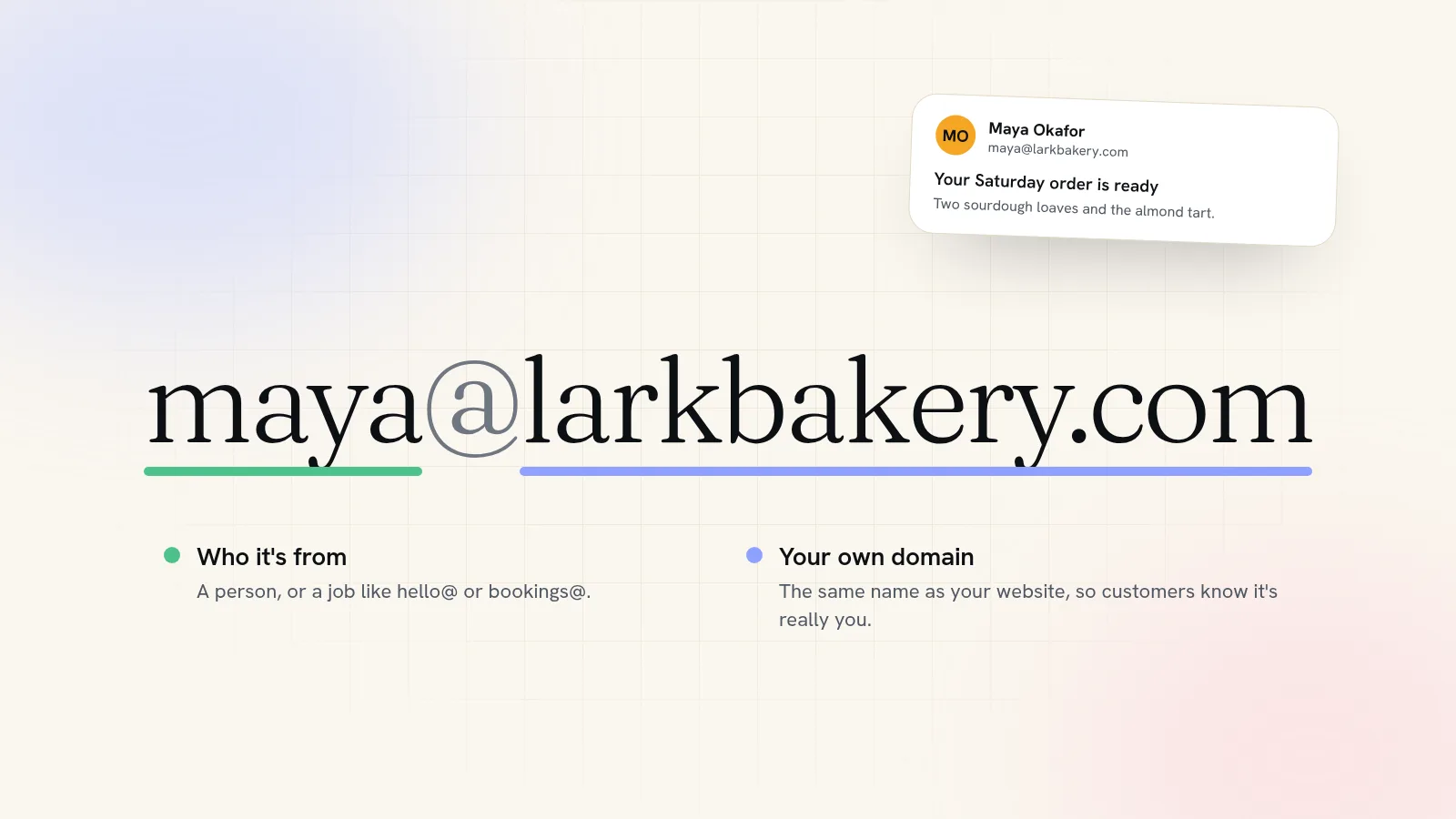
To get a professional email address, you need two things: a domain name you own, like larkbakery.com, and an email service that runs mailboxes on it. Buy the domain, choose the email service, add the records it gives you to the domain's settings, and you can send from an address like maya@larkbakery.com from your phone the same day. Expect to pay about $16 a year for a .com and from a few dollars per person a month for the mailbox, or nothing extra if your website plan includes both.
What makes an email address professional
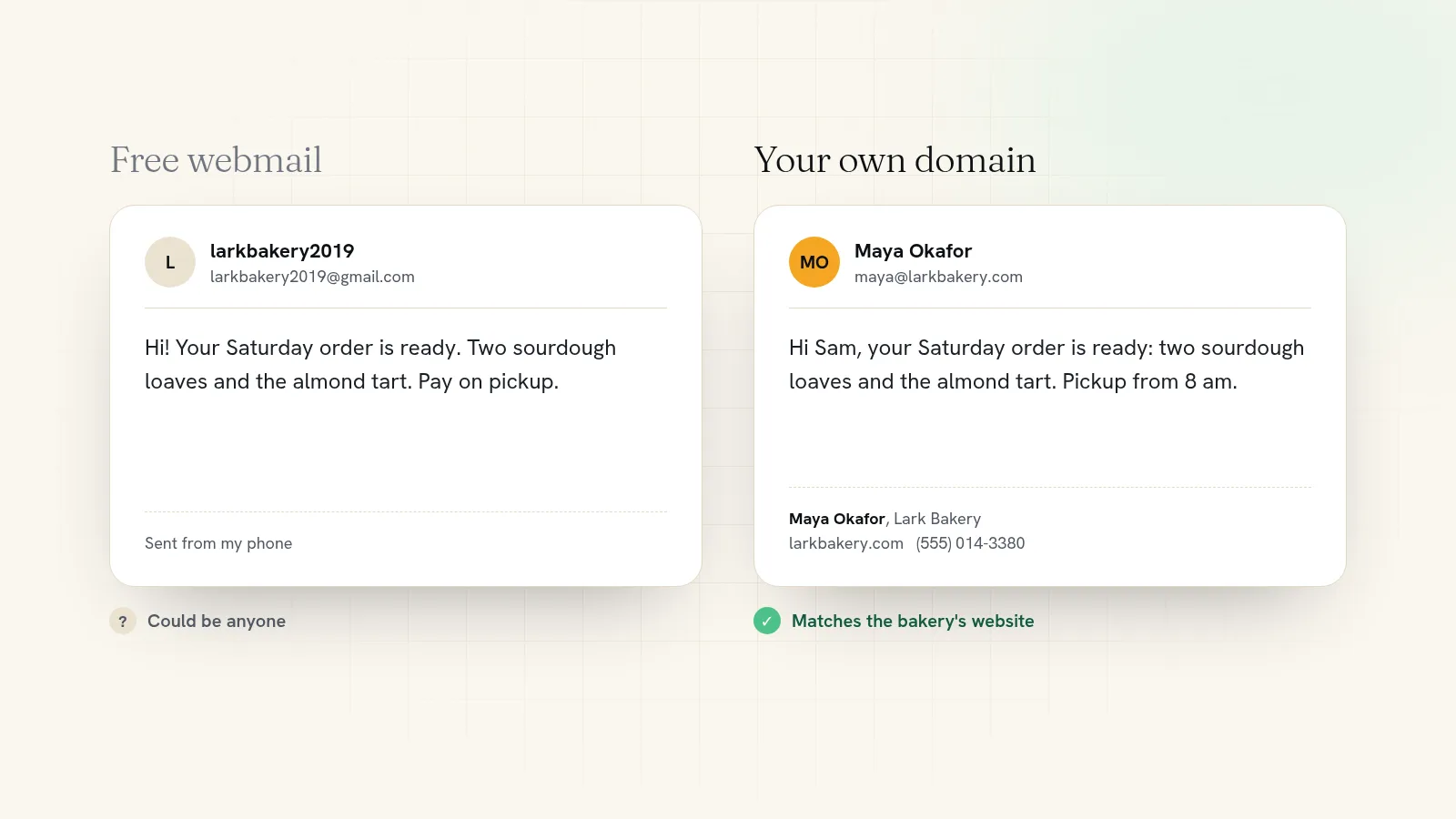
A professional address has your business's own name after the @. Compare:
- larkbakery2019@gmail.com could belong to anyone. Customers can't tell whether it's you, a former employee, or someone pretending to be you.
- maya@larkbakery.com can only come from someone who controls larkbakery.com. It matches your website, and it reminds people of your web address every time they read it.
That last point matters more than it sounds. Every invoice, quote and booking confirmation you send is a small advert for your name. It also keeps your business separate from your personal inbox, so you can hand an address to a new hire or an accountant without handing over your life.
What you need
- A domain name. The part after the @. You rent it by the year from a domain company.
- Email hosting. A company that stores your mail, filters spam and lets you send. Google Workspace, Microsoft 365, Zoho and many website builders offer it.
- A few DNS records. Settings on your domain that tell the rest of the internet where your email lives. Your email company tells you exactly what to add, and some add them for you.
Step 1: Get a domain name
If you already have a website on your own domain, you have this part. If not, pick a name that is short, easy to spell when you say it out loud, and ends in .com if you can get it. People type .com by habit. Our guide on how to choose a domain name covers what to do when your first choice is taken.
A .com usually costs between $10 and $20 a year. Register it in the business's name with an email address you'll always have access to, because that's where renewal notices go. If the domain lapses, your email stops arriving.
Step 2: Choose where your email lives
There are three common routes. Prices below were checked on each company's own site in November 2026.
| Option | What it costs | Good to know |
|---|---|---|
| Google Workspace | From $7 per user a month | Gmail on your own domain, plus Google's calendar, documents and storage. You pay for each person who needs a mailbox. |
| Zoho Mail free plan | $0 for up to 5 users | 5 GB per user on one domain. It doesn't connect to standard mail apps like Apple Mail or Outlook, so you use Zoho's own apps. |
| Included with a website plan | Part of the plan price | Some builders include mailboxes. Squarespace includes one Google Workspace account free for the first year on its Core plan and up. Wix doesn't include email and points customers to Google Workspace. Every Quick Elements plan includes at least one business email account with no time limit. |
Which one fits? If your team lives in shared documents and calendars, Google Workspace is worth the money. If you're one person who mostly needs a trustworthy address for customers, a plan that bundles email with your website saves a bill and a login.
Step 3: Pick the address itself
The part before the @ is yours to choose. A few patterns work for almost every small business:
- Your first name (maya@) for anything personal: quotes, partnerships, suppliers. People reply to people.
- A general address (hello@ or info@) for your website, your Google listing and your printed menus. It can outlive any one person and be passed to whoever answers the inbox.
- A job address (bookings@, orders@, accounts@) once one inbox gets crowded.
Avoid numbers, nicknames and anything you'd need to spell out over the phone. If two people share a first name, settle on a format now (maya.k@ or mayak@) so you don't end up with three different styles.
Step 4: Connect email to your domain
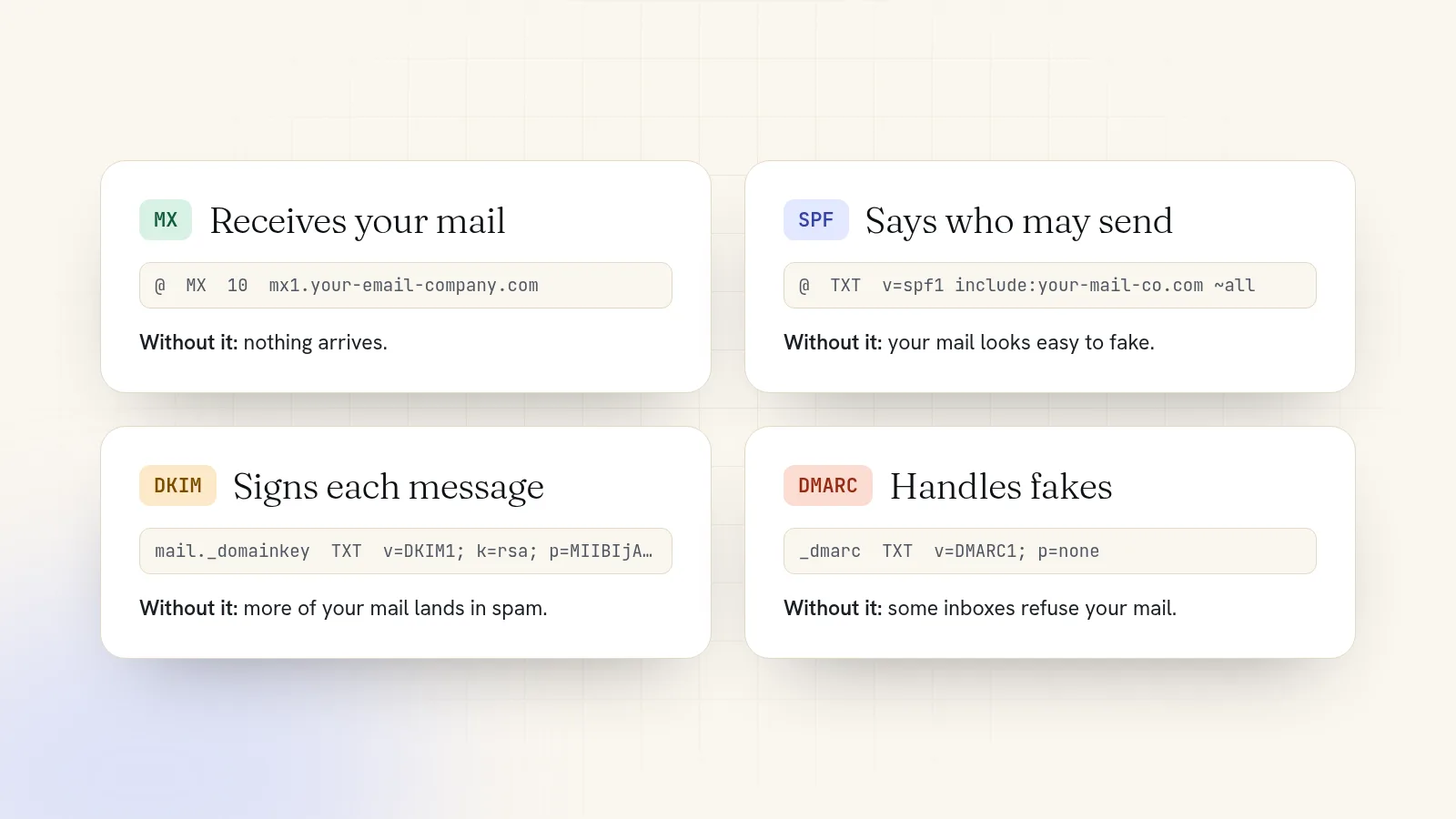
Your email company gives you a short list of records to add in your domain's DNS settings. There are four kinds, and each has a simple job:
- MX tells the world which company receives mail for your domain. Without it, nothing arrives.
- SPF lists who is allowed to send mail as your domain.
- DKIM adds a signature to each message so receivers can check it wasn't forged.
- DMARC tells receivers what to do with mail that fails those checks.
Skip SPF and DKIM and your messages are much more likely to land in spam. Gmail and Outlook check for them on incoming mail, and a domain without them looks like the kind spammers use.
If you already have email on the domain and you're switching companies, replace the old MX and SPF records with the new ones rather than adding to them. Two sets of MX records split your mail between two inboxes.
Step 5: Add it to your phone and computer
Most email services let you read mail in a browser and in the mail app you already use. Add the account once on your phone and once on your laptop, and send yourself a test from a personal address to check both directions. If you're on Quick Elements, follow the step-by-step guides for adding your email to an iPhone or adding it to Outlook.
Then finish the job: add a signature with your name, business, phone number and website, update the address on your website, invoices and Google listing, and set your old personal address to auto-reply with the new one for a month.
Can I get a professional email address for free?
Partly. The domain always costs something, because you rent it by the year. The mailbox can be free in two ways:
- A free email plan such as Zoho's, which works if you're happy to use its apps instead of the one already on your phone.
- A website plan that includes email, so the mailbox costs nothing on top of the site you were going to pay for anyway. Check whether the email is free forever or only for the first year.
Be wary of tricks like setting a free webmail account to "send as" your domain without proper records. Those messages fail the SPF and DKIM checks above and tend to go to spam.
Mistakes to avoid
- Registering the domain with an email address on the same domain. If the domain ever lapses, the renewal warnings go to an inbox that no longer works.
- Deleting records when you change websites. Moving your website only touches the records for your web address. Leave MX, SPF and DKIM alone. Our guide to connecting your domain to a new website shows which records to change and which to keep.
- Sharing one password between staff. Give each person their own mailbox, or a shared address with its own login. When someone leaves, you change one password, not five.
Professional email with your website, on one bill
Every Quick Elements plan comes with business email on your own domain, along with a free .com or .org to put it on. Essentials includes one email account, Advanced two and Ultimate five. Your website, domain and inbox sit in one account and renew together, so the address on your website never points at an inbox you forgot to pay for.
Setup is mostly done for you. Once your domain is confirmed as yours, we create your inbox at contact@ your domain, and mail sent to any other address at your domain, like hello@ or bookings@, lands there too, so nothing gets lost while you settle on addresses. If you registered the domain with us, we add the email records ourselves. If it's with another company, we show you the exact records to add. Read your mail in your Quick Elements inbox or add it to the mail app on your phone and laptop, with no ads beside your messages.
See what comes with each mailbox on the business email page, or choose a plan and get your website, domain and address set up together.