
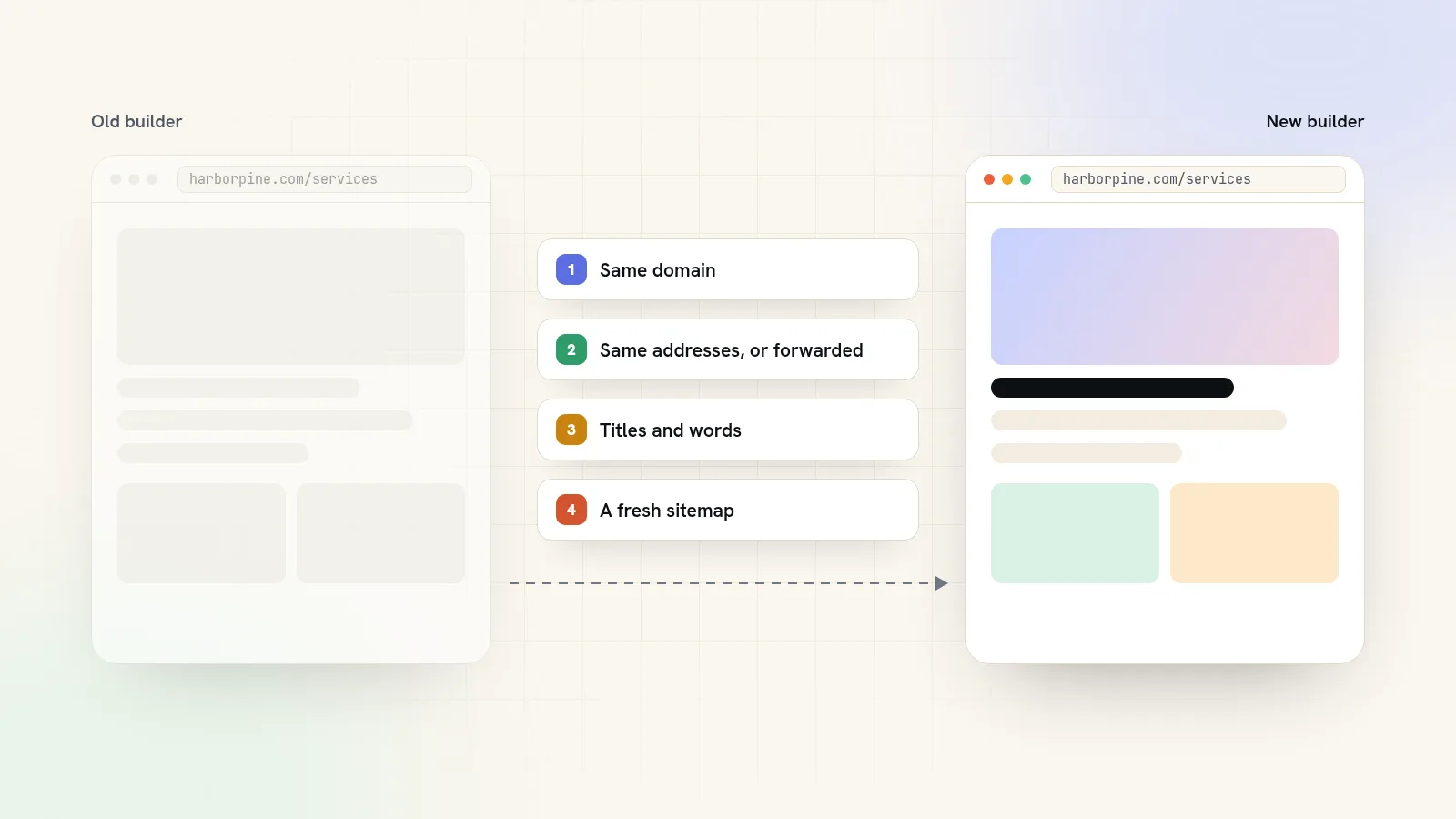
You can switch website builders without losing your Google rankings if you keep four things: the same domain, the same page addresses (or a permanent redirect from every old address to its new one), the words and titles that earned the rankings, and a fresh sitemap submitted to Google. Rankings rarely drop because of the new builder itself. They drop because old links break, pages go missing, or titles get lost in the move.
Here's how to plan the move, what to do on launch day, and what to watch for in the weeks after.
What actually causes rankings to drop after a move
When you move, Google has to recrawl your site and work out that the new pages are the same ones it used to rank. It loses track when:
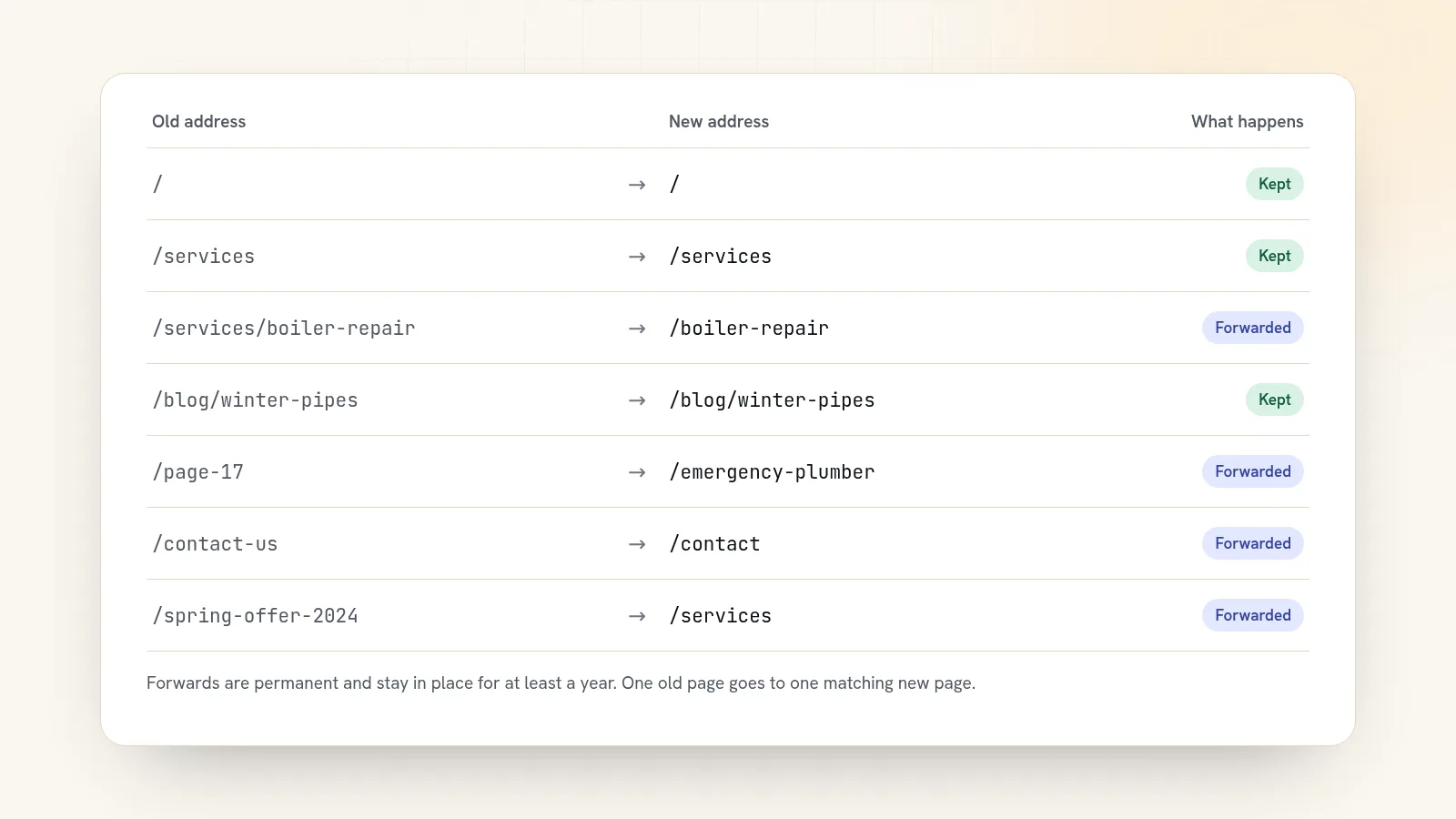
- Addresses change without redirects. Your old page at /services/boiler-repair now lives at /boiler-repair, and Google, plus every site that linked to you, hits a "page not found".
- Pages get cut. The "boring" page you didn't bother moving was the one bringing in half your visitors.
- Titles and descriptions are lost. The new site falls back to "Home" or your business name on every page.
- The domain changes. Moving to a new domain is a much bigger job than moving builders. Avoid doing both at once.
- The new site is hidden from search. Some builders keep an unfinished site out of search results until you publish. Forget to switch that off and Google drops you.
Even a careful move can wobble for a while. Google's own guidance on site moves says rankings may fluctuate while it recrawls, and that for a medium-sized site it can take a few weeks or more for the new addresses to show up.
Before you switch: list every page you have
This is the step people skip, and it's the one that saves your rankings. Make a spreadsheet with one row per page on your current site:
- Find every address. Most sites have a sitemap at yourdomain.com/sitemap.xml that lists them. Add any pages it misses, such as old blog posts and landing pages from past ads.
- Find the pages that matter. In Google Search Console, the Performance report shows which pages get clicks from search and for which searches. Sort by clicks. Your top 10 or 20 pages deserve the most care.
- Record what's on each page. Its search title, its description, its main heading, and roughly what the text covers.
- Add a column for the new address. You'll fill this in as you build.
If you don't have Google Search Console yet, set it up now on the old site. It's free, and you'll want the before-and-after comparison.
Step 1: Keep your domain
Your domain carries your reputation with Google and every link other sites have pointed at you. Keep it. You don't need to transfer it to the new builder, either; you only change the records that say where your website lives. Our guide to connecting your domain to a new website walks through it, including how not to break your email on the way.
Step 2: Keep the same addresses wherever you can
The safest redirect is the one you never need. If your old services page lived at /services, give the new one the same address. Builders differ in how they shape addresses, especially for blog posts and products, so check whether the new builder lets you set each page's address freely or forces its own pattern on you.
Use the move to fix genuinely bad addresses (like /page-17) but don't rename good ones just because the new builder suggests something different.
Step 3: Redirect every address that changes
A redirect sends anyone who visits an old address straight to the new one. For a move, use permanent redirects (often called 301s). Google recommends them and says they don't cost a page its ranking strength.
Three rules:
- One old page to one matching new page. Don't send everything to your homepage. Google says redirecting lots of old pages to one unrelated page, like the homepage, may be treated as if the pages had simply disappeared.
- No chains. Point the old address straight at the final page, not at another redirect.
- Keep them for at least a year. That's Google's minimum recommendation, and longer is better. Old links in emails, printed menus and other sites don't expire.
Step 4: Move the words that earned the rankings
A redesign makes it tempting to rewrite everything. Hold back on your best pages. If a page ranks well, Google likes what it says. Carry over:
- The search title and description, word for word to start with.
- The main heading and the subheadings.
- The body text, especially the parts that answer specific questions.
- Descriptions on images, and the links between your own pages.
Improve the design around the words first. Once the move has settled, rewrite pages one at a time and watch what each change does.
Step 5: Launch day
- Point your domain at the new site.
- Check the new site isn't set to hide from search engines.
- Test 10 to 20 old addresses from your spreadsheet. Each one should land on its new page, not a "page not found".
- Submit your new sitemap in Google Search Console. Google says this helps it learn the new addresses.
- Test the things that make money: the contact form, booking, checkout, the phone number link.
- Update your Google Business Profile and social profiles if any links point at old addresses.
The first eight weeks: what to watch
Check Google Search Console once a week for the first two months.
- Pages report: look for a rise in "Not found" errors. Each one is an old address you missed. Add a redirect for it.
- Performance report: compare clicks with the same weeks before the move. A small dip that recovers is normal. A page that drops and stays down usually lost its words or its redirect.
- Your top pages: search for their main phrases yourself, from a private browser window.
If clicks are back where they were after about two months, the move worked. Now you can start improving.
Switching to Quick Elements
Quick Elements has a tool for each of these steps:
- Keep your addresses. Every page can live at any address you like, such as /pricing or /help/faq, with no forced prefix. You can match your old addresses exactly.
- Forward the ones that change. The Forwarding screen sends an old address to its new page. Moves are permanent unless you say otherwise, so search engines update their links. Rename a page later and the editor offers to forward the old address for you, and the list shows how many visitors each forward has sent on.
- Carry your titles over. Each page has its own search title and description, and the fields warn you when one is too long or too short for search results.
- Tell Google. The sitemap is made for you and you choose exactly which pages it includes. Search engines can be told automatically whenever you publish or update a page.
- Catch what you missed. An address that matches nothing shows your site's own "page not found" page, with your header and footer, so a missed link still lands somewhere useful.
- Keep your domain. Connect the one you own; the setup page shows the exact records for your domain company.
Coming from a particular builder? See how we compare with Squarespace and Wix. When you're ready, choose a plan, build the new site on a design made for your trade, and move over with your rankings intact.