To accept payments on your website you need two things: a checkout where customers type in their card, and a payment account that confirms who you are and pays the money into your bank. You can get them from a payment link you paste onto your site, from a website builder with checkout built in, or from a developer who connects a payment service to a custom site. For most small businesses, a website with checkout built in is the quickest to set up and the least to look after.
This guide explains what happens when someone pays, the three ways to take cards online, what the fees look like, and a checklist to run before your first real sale.
What happens when a customer pays you online
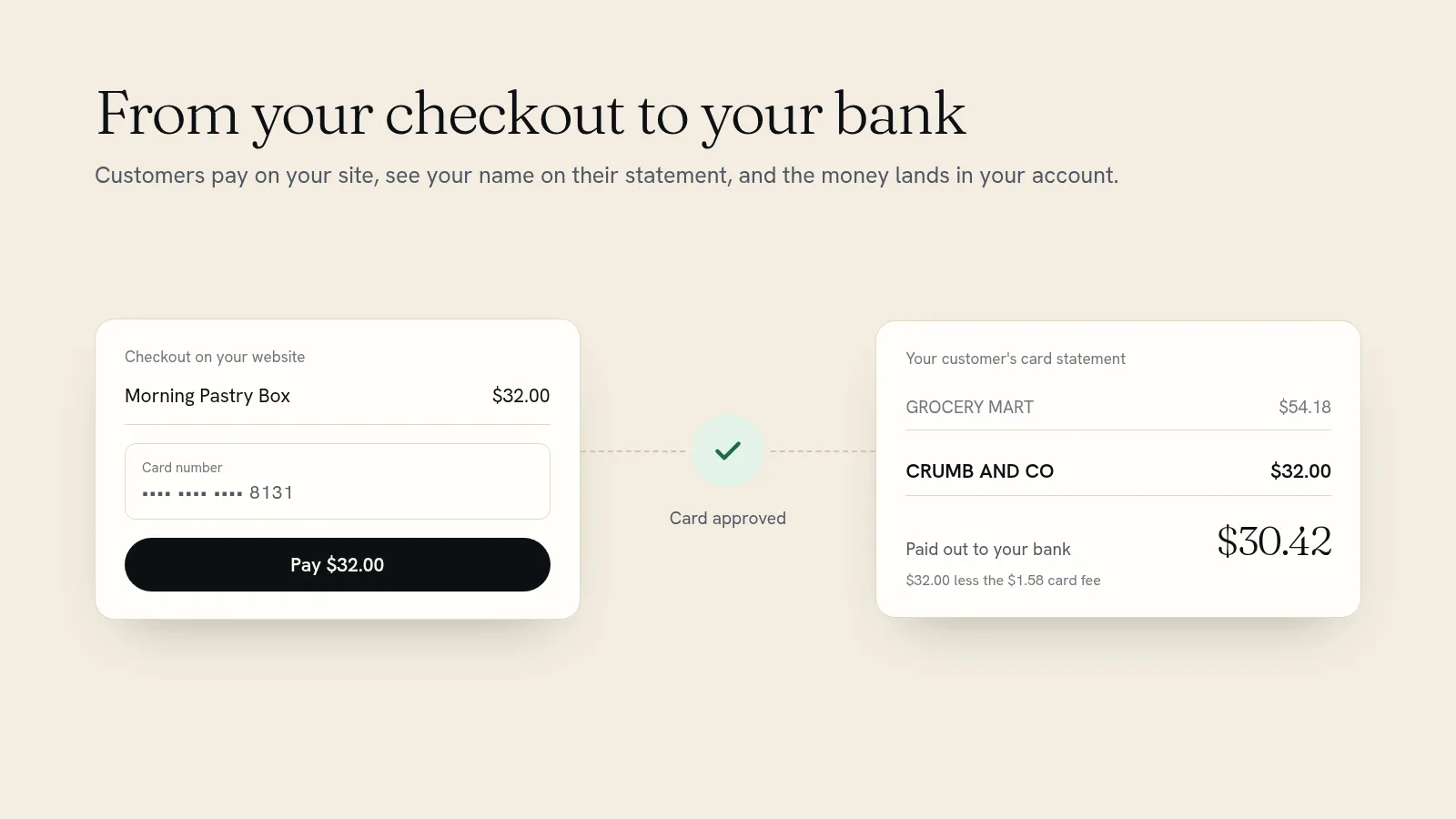
It takes a few seconds from the customer's side. Behind the button:
- The customer enters their card on your checkout.
- The card details go to a payment service, which asks the customer's bank to approve the charge.
- Once approved, the money is held in your payment account, minus the fee for that payment.
- The balance is paid out to your business bank account on a regular schedule.
- The charge shows on the customer's card statement under a short business name you choose.
Before any of that, the payment service has to check who is being paid. Expect to give your name, date of birth, address, bank details and, if you have a company, its registered details. Every legitimate payment provider asks for this. It helps stop stolen cards being cashed out through fake shops.
Three ways to take payments on a website
1. Payment links and buttons
Services like PayPal and Square let you create a "Pay now" link or button for a set amount and paste it onto any page.
Good for: one product, a deposit, an invoice, or a donation, when you need to take money today. The catch: customers usually leave your site to pay, there's no cart for several items, and nothing connects the payment to your stock, bookings or customer list. You end up matching payments to orders by hand.
2. A website builder with checkout built in
The site, the products, the cart, the checkout and the payment account all come from one place. A sale reduces your stock, sends the receipt and lands in your orders list on its own.
Good for: almost every small business that sells products, tickets, classes or appointments. The catch: a monthly plan, and you take payments the way that builder supports.
3. A custom site with a payment service
A developer connects a payment service directly to a site built for you. Good for: unusual checkouts, such as complex quotes or software sign-ups. The catch: development costs, and someone has to maintain it every time the payment service or the site changes.
What payment fees look like
Almost every option charges a percentage of each payment plus a small fixed amount. A few examples, checked in November 2026:
- Square charges 3.3% + 30¢ for online payments on its free plan, and 2.9% + 30¢ on its plans from $49 a month per location.
- Quick Elements charges 3.99% + 30¢ per card sale, card processing included, on every plan. Plans start at $29 a month on a yearly plan, and include the website, store, bookings, a domain name and email marketing.
Compare the whole monthly bill, not only the percentage. A cheaper payment rate can sit next to separate charges for a website, a booking tool and an email newsletter service. Also check how long payouts take to reach your bank, and whether there are extra charges for foreign cards, currency conversion or disputed payments.
A checklist before your first sale
- Statement name. Use the name customers know you by. Customers who don't recognize a charge sometimes dispute it with their bank.
- Bank account. Double-check the account and routing numbers. A typo here delays your first payout.
- Refund and cancellation policy. Write it in plain words and link it from the checkout.
- Delivery or pickup. Set shipping rates, a local pickup option, or both, so customers aren't surprised at the last step.
- Sales tax. Turn on tax calculation and set your rates if your business has to charge it.
- Receipts. Check the confirmation email has your name, contact details and what was bought.
- Your phone. Most people will pay on one. Go through the whole checkout on yours.
- A real test. Buy something cheap from your own site with your own card, then refund it.
How to accept payments with Quick Elements
On Quick Elements, card payments are part of your website, set up from your account without leaving it.
- Build your site. Choose a plan, name the site, pick its web address and choose a design. It's built in about two minutes once the address is connected.
- Open Payments in your account and choose Set up next to your site.
- Say how your business is set up: "It's just me" for sole traders, freelancers and the self-employed, or "I have a registered company" for companies, LLCs, partnerships and non-profits.
- Check the details and agree to the terms. Everything you've already told us is filled in for you. If something needs another look, the page says exactly what.
- Start selling. Once the status shows you're set up, shoppers pay by card at checkout. The money goes to your bank account, and your own business name is what customers see on their statement.
The same checkout handles everything your site sells: products in your shop, tickets to events, places in classes and bookings for appointments, with tax, receipts and stock handled together. If you post orders, our guide to setting shipping rates helps you charge the right amount, and if you sell sessions, see selling event tickets on your own website.
Common questions
Do I need a registered business to take card payments?
No. Sole traders and freelancers can take payments under their own name. Choose the option that matches how you file your taxes, because it can't be changed later.
Is it safe to take cards on my own website?
Yes, when the card details go straight to the payment service rather than being stored on your site, which is how built-in checkouts work. Your site also needs a security certificate (the padlock in the address bar). Quick Elements sites get one automatically.
Can I take payments without a website?
Yes, with a payment link or an invoice. It works for occasional payments. Once you sell more than one thing, a website with a cart saves you hours of matching payments to orders.
Get paid on a site that does the rest too
Taking payments is the easy part to buy. What saves you time is everything joined up behind it: the product page, the booking, the stock count, the receipt and the customer list. Quick Elements gives you all of it on one site with your name on it, and card payments set up from your account without filling in the same details twice.
Browse the designs to see what your site could look like, or choose a plan and take your first payment this week.